Design mail and PDF templates
Every mail and PDF a Kumiko app sends comes from a template stored in the database. Features ship a default text, and admins change it in the document designer. A platform admin edits the system templates every tenant starts from. Tenant admins adapt only the templates the app has unlocked for them. Nothing needs a deploy.
The screenshots come from the UI walkthrough sample, a fictional property manager called Nordlicht that works in German. The labels in this guide are the English ones you see with the interface set to English.
Before you start
Section titled “Before you start”The app mounts the template-resolver
and document-designer features.
Mails go out through channel-email and
the renderer-mail-html renderer.
PDFs need the print service from
renderer-puppeteer-client.
By default only the platform admin role edits templates, in Templates and
System templates. An app unlocks single templates for tenant admins with
tenantEditable on the template resolver, each entry naming kind, slug and the
roles allowed, and passes the same entries to the designer through
templateEditAccess(tenantEditable). A tenant admin then sees Templates
with the unlocked templates only. Mails that go to external addresses stay
locked unless the app has a reason to open them.
Find a template
Section titled “Find a template”Templates lists every mail, PDF and layout your tenant uses.
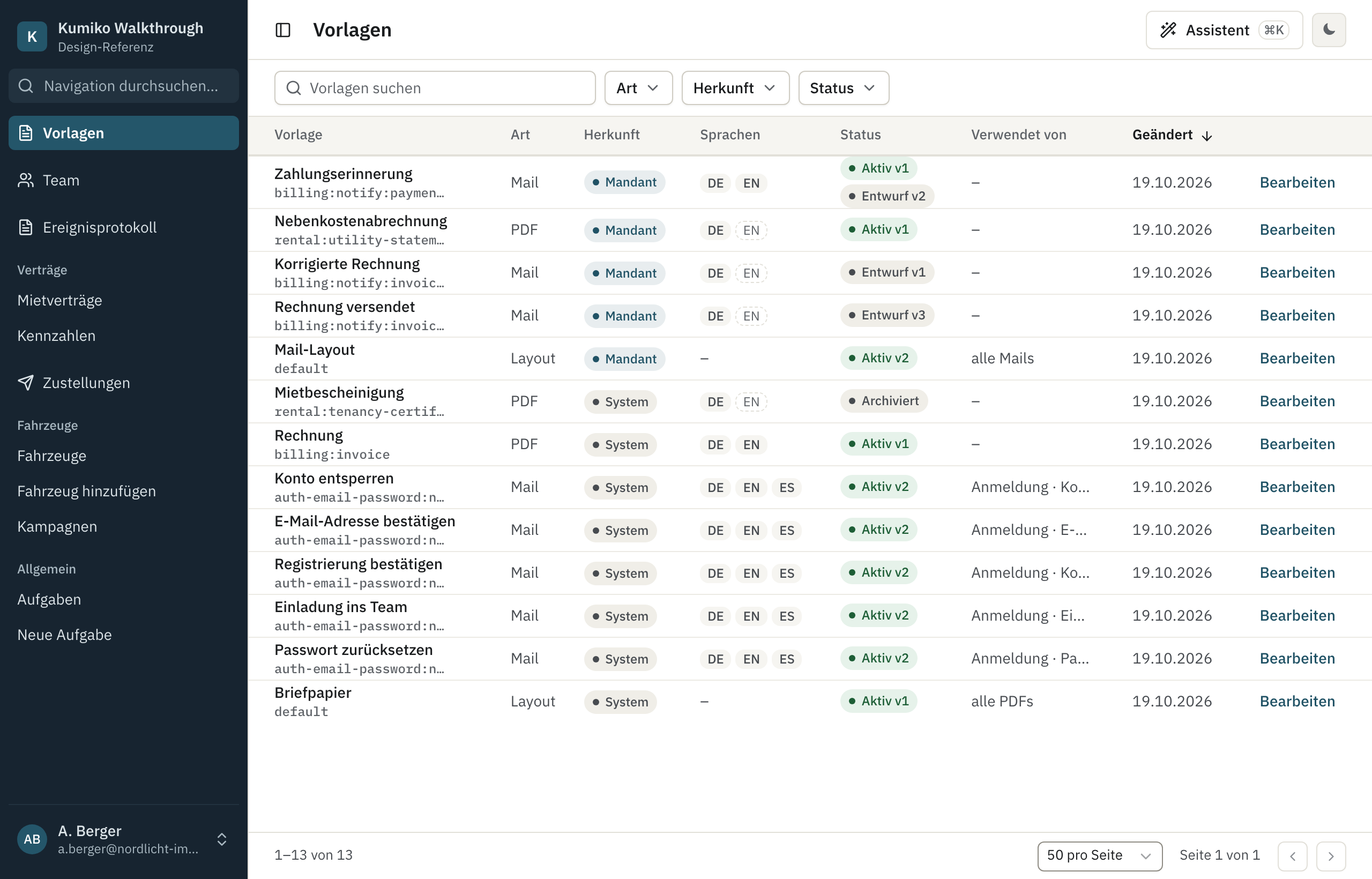
Each row shows:
- Kind: mail, PDF or layout.
- Origin: System means you see the platform’s version. Tenant means your organization has its own version.
- Languages: a solid code has a version in that language. A dashed code has none yet, so recipients with that language get the fallback language.
- Status: Active is what recipients get. Draft is saved but not published. A row can show both, for example Active v1 and Draft v2, while you work on a new version.
- Used by: the feature and event that send this mail, such as a sign-in confirmation. For layouts it says all mails or all PDFs.
Use the search field and the Kind, Origin and Status filters to narrow the list, then click Edit.
Change a mail
Section titled “Change a mail”The mail editor has three columns: placeholders on the left, the mail in the middle, and its properties on the right.
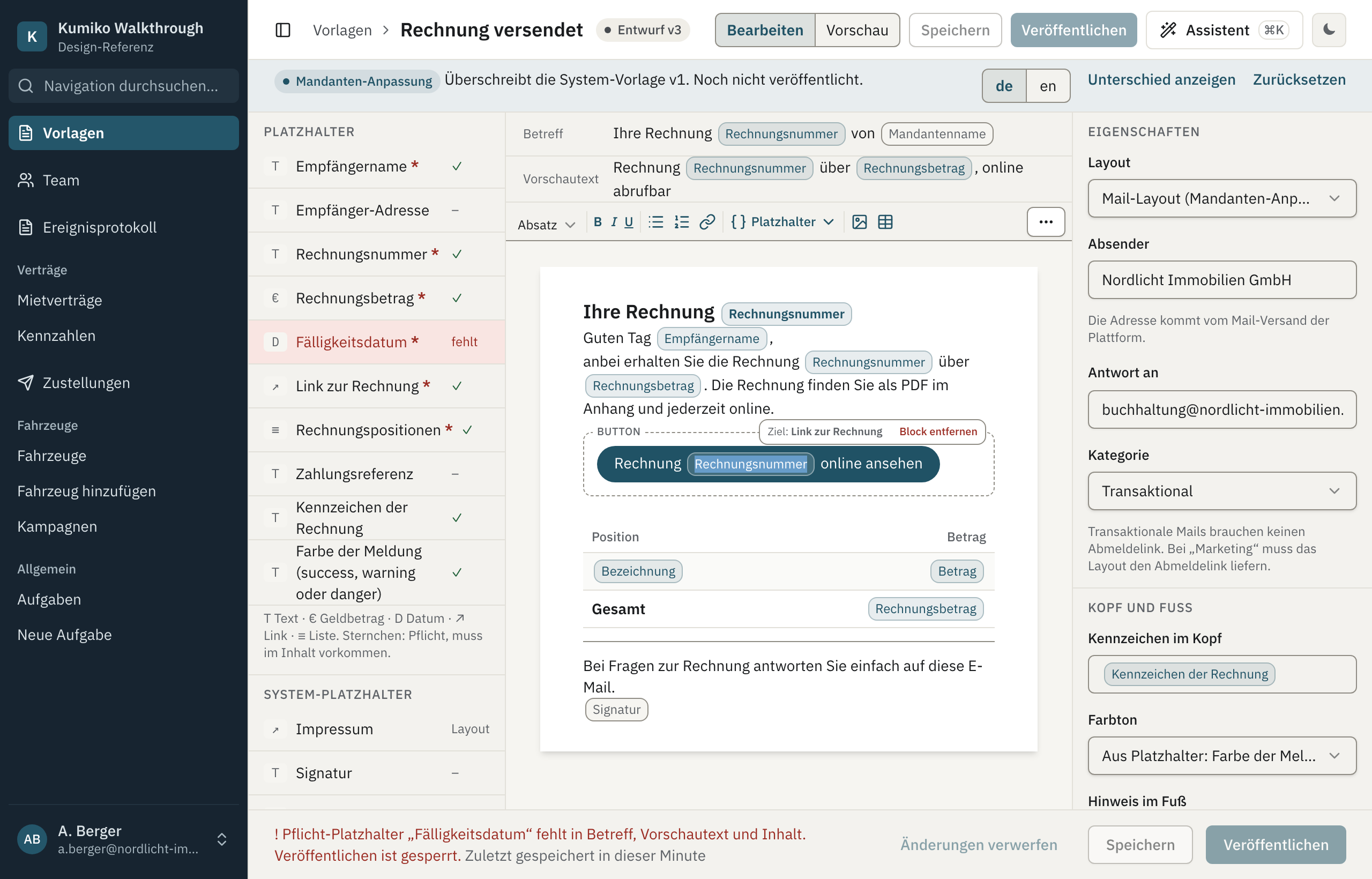
The bar under the title tells you what you are editing. On a system template it says that saving creates a customisation for your tenant. On your own version it names the system version it overrides, with Show difference and Reset. Reset removes your customisation in all languages, and the system template applies again.
In the middle you edit:
- Subject and Preview text. The preview text is the short line an inbox shows next to the subject.
- The body. The toolbar has headings, bold, italic, underline, lists, links, placeholders, images and tables. Click a button block to see where it links to, or remove it with Remove block.
The right column holds the settings that are not part of the text:
- Layout: which mail layout frames this template. See Layouts and branding.
- Sender: the name recipients see. The address itself comes from the platform’s mail delivery or, if your app lets tenants send through their own mail server, from Email sending in your settings. The hint under the field links there.
- Reply to: where answers go, for example your accounting team.
- Category: Transactional mails need no unsubscribe link. With Marketing the layout has to provide one.
- Usage: the feature and event that send the mail. The feature decides which placeholders exist; you cannot add new ones here.
- Versions: every save creates a new version, and the list shows who saved which one and when.
Header and footer
Section titled “Header and footer”Further down the right column, Header and footer sets three things that sit outside the body:
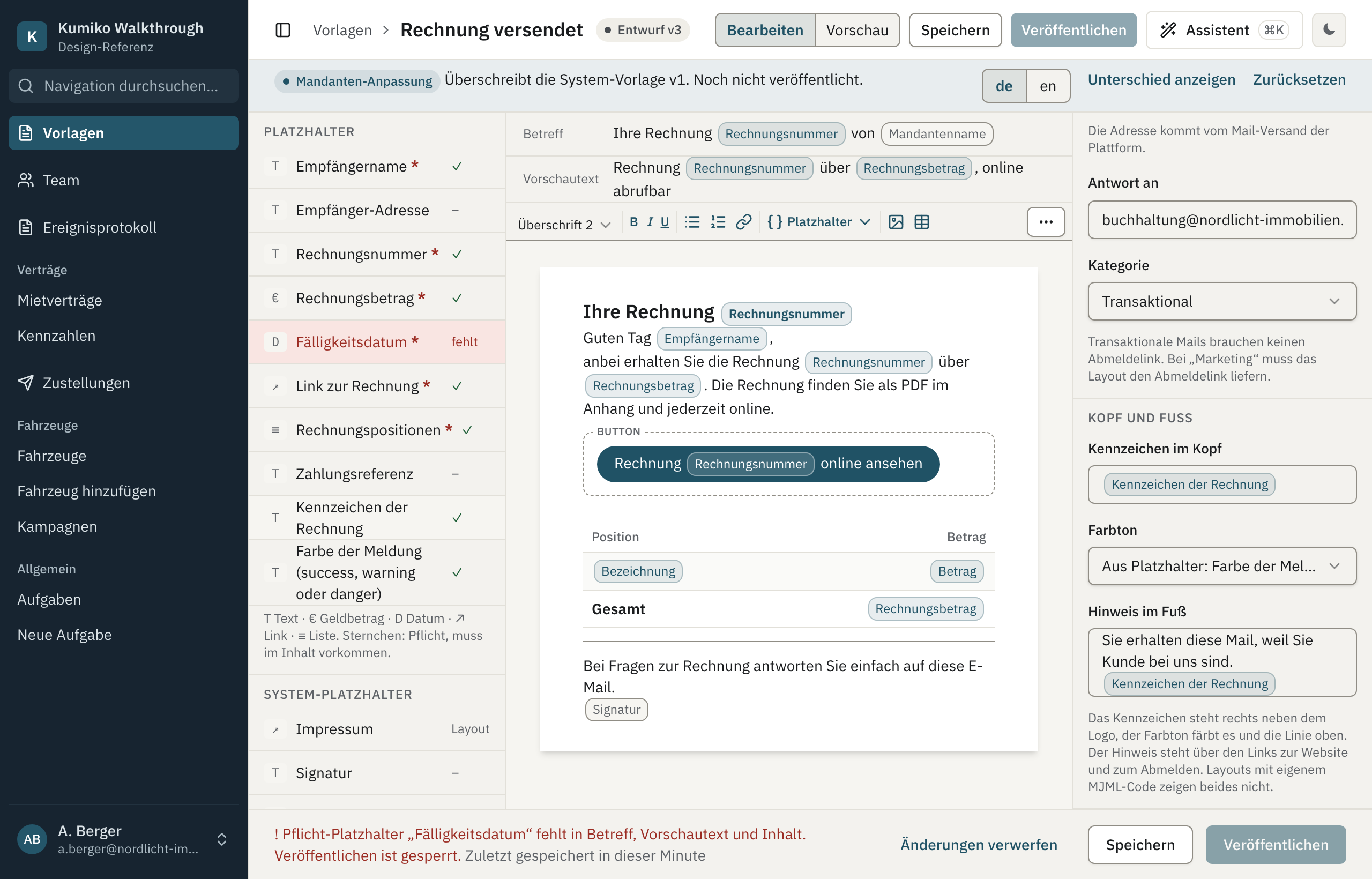
- Label in the header stands to the right of the logo, for example “New invoice”. It can contain placeholders.
- Tone colours that label and the line at the top of the mail. Pick a fixed colour (info, success, warning, danger, neutral) or let a placeholder decide, so one template can say “paid” in green and “overdue” in red.
- Note in the footer explains why the recipient gets this mail. It stands above the website and unsubscribe links.
Layouts written in raw MJML show neither label nor note.
Placeholders
Section titled “Placeholders”The left column lists the placeholders this mail can use. The feature that sends the mail defines them, each with a type, a label and a sample value.
- The letter in front shows the type: T text, € amount, D date, ↗ link, ≡ list.
- An asterisk marks a required placeholder. It has to appear in the subject, preview text or body.
- A tick means the template uses it. A required placeholder that is missing turns red and says missing.
Click a placeholder to insert it at the cursor, or use Placeholders in the
toolbar. In the text it appears as a chip with its label, so you never type
{{invoiceNumber}} by hand. A list placeholder such as invoice lines fills a
table row once per entry.
System placeholders come from the platform: tenant name, signature, imprint and unsubscribe link. Imprint and unsubscribe link belong to the layout.
A missing required placeholder blocks publishing. You can still save the draft and send yourself a test mail, and the footer tells you which placeholder is missing.
Where placeholders come from
Section titled “Where placeholders come from”Developers declare the placeholders next to the notification. The labels and the sample values are translation keys or plain values, and the designer shows the label in the editor’s language. This is the billing feature of the walkthrough sample:
import { defineFeature, templateVariable } from "@cosmicdrift/kumiko-framework/engine";import { toKeyFirst } from "../translations";import { billingTranslations } from "./i18n";
// Variable labels are i18n keys, so the designer's rail and chips speak the editor's language.// Both mails are sent by the host app's billing run, not by an event trigger in// this sample; they exist so the template overview has real senders to show.const INVOICE_ISSUED_VARIABLES = {  recipientName: templateVariable.text({    label: "billing:mail.variable.recipientName",    required: true,    example: "Familie Yilmaz",  }),  recipientEmail: templateVariable.text({    label: "billing:mail.variable.recipientEmail",    example: "yilmaz.familie@example.org",  }),  invoiceNumber: templateVariable.text({    label: "billing:mail.variable.invoiceNumber",    required: true,    example: "RE-2026-0142",  }),  invoiceTotal: templateVariable.money({    label: "billing:mail.variable.invoiceTotal",    required: true,    example: { amount: 128450, currency: "EUR" },  }),  dueDate: templateVariable.date({    label: "billing:mail.variable.dueDate",    required: true,    example: "2026-10-30",  }),  invoiceUrl: templateVariable.link({    label: "billing:mail.variable.invoiceUrl",    required: true,    example: "https://nordlicht-immobilien.de/rechnungen/RE-2026-0142",  }),  lines: templateVariable.list(    {      description: templateVariable.text({ label: "billing:mail.variable.lines.description" }),      amount: templateVariable.money({ label: "billing:mail.variable.lines.amount" }),    },    {      label: "billing:mail.variable.lines",      required: true,      example: [        { description: "Kaltmiete Oktober 2026, Lindenstraße 14 WE 3", amount: 98000 },        { description: "Betriebskostenvorauszahlung Oktober 2026", amount: 24500 },        { description: "Stellplatz 7, Oktober 2026", amount: 5950 },      ],    },  ),  paymentReference: templateVariable.text({    label: "billing:mail.variable.paymentReference",    example: "RE-2026-0142 / Yilmaz",  }),  // A text example given as i18n key follows the edited template's language.  noticeLabel: templateVariable.text({    label: "billing:mail.variable.noticeLabel",    example: "billing:mail.example.noticeLabel",  }),  noticeTone: templateVariable.text({    label: "billing:mail.variable.noticeTone",    example: "success",  }),} as const;
const PAYMENT_REMINDER_VARIABLES = {  customerName: templateVariable.text({    label: "billing:mail.variable.customerName",    required: true,    example: "Familie Yilmaz",  }),  invoiceNumber: templateVariable.text({    label: "billing:mail.variable.invoiceNumber",    required: true,    example: "RE-2026-0142",  }),  amount: templateVariable.money({    label: "billing:mail.variable.amountDue",    required: true,    example: { amount: 128450, currency: "EUR" },  }),  dueDate: templateVariable.date({    label: "billing:mail.variable.dueDate",    required: true,    example: "2026-10-30",  }),  invoiceUrl: templateVariable.link({    label: "billing:mail.variable.invoiceUrl",    required: true,    example: "https://nordlicht-immobilien.de/rechnungen/RE-2026-0142",  }),} as const;
const TERMS_CHANGED_VARIABLES = {  customerName: templateVariable.text({    label: "billing:mail.variable.customerName",    required: true,    example: "Familie Yilmaz",  }),  effectiveDate: templateVariable.date({    label: "billing:mail.variable.effectiveDate",    required: true,    example: "2026-12-01",  }),} as const;
export const billingFeature = defineFeature("billing", (r) => {  r.translations({ keys: toKeyFirst(billingTranslations) });
  r.notification("invoice-issued", { variables: INVOICE_ISSUED_VARIABLES });  r.notification("invoice-corrected", { variables: INVOICE_ISSUED_VARIABLES });  r.notification("payment-reminder", { variables: PAYMENT_REMINDER_VARIABLES });  // Legal wording the platform owns: tenant admins neither see nor override it.  r.notification("terms-changed", { variables: TERMS_CHANGED_VARIABLES, systemOnly: true });});
Images and attachments
Section titled “Images and attachments”Under Resources in the left column, + Upload adds a file to this template. You save the template once before the first upload.
- Image (inline) is embedded in the mail itself, so it shows even when the recipient’s client blocks remote images. Insert it with the image button in the toolbar.
- File attachment goes out with every mail of this template, as PDF, PNG or JPEG.
To attach a document that differs per mail, such as the invoice itself, use
+ Attachment from PDF template under Attachments. Pick the PDF template
and a file name; the name may contain placeholders and has to end in .pdf.
The PDF is generated when the mail is sent, with the same values as the mail.
When you start a new language by copying a system version, images and attachments do not come along. Upload them again in the new language.
Preview and test mail
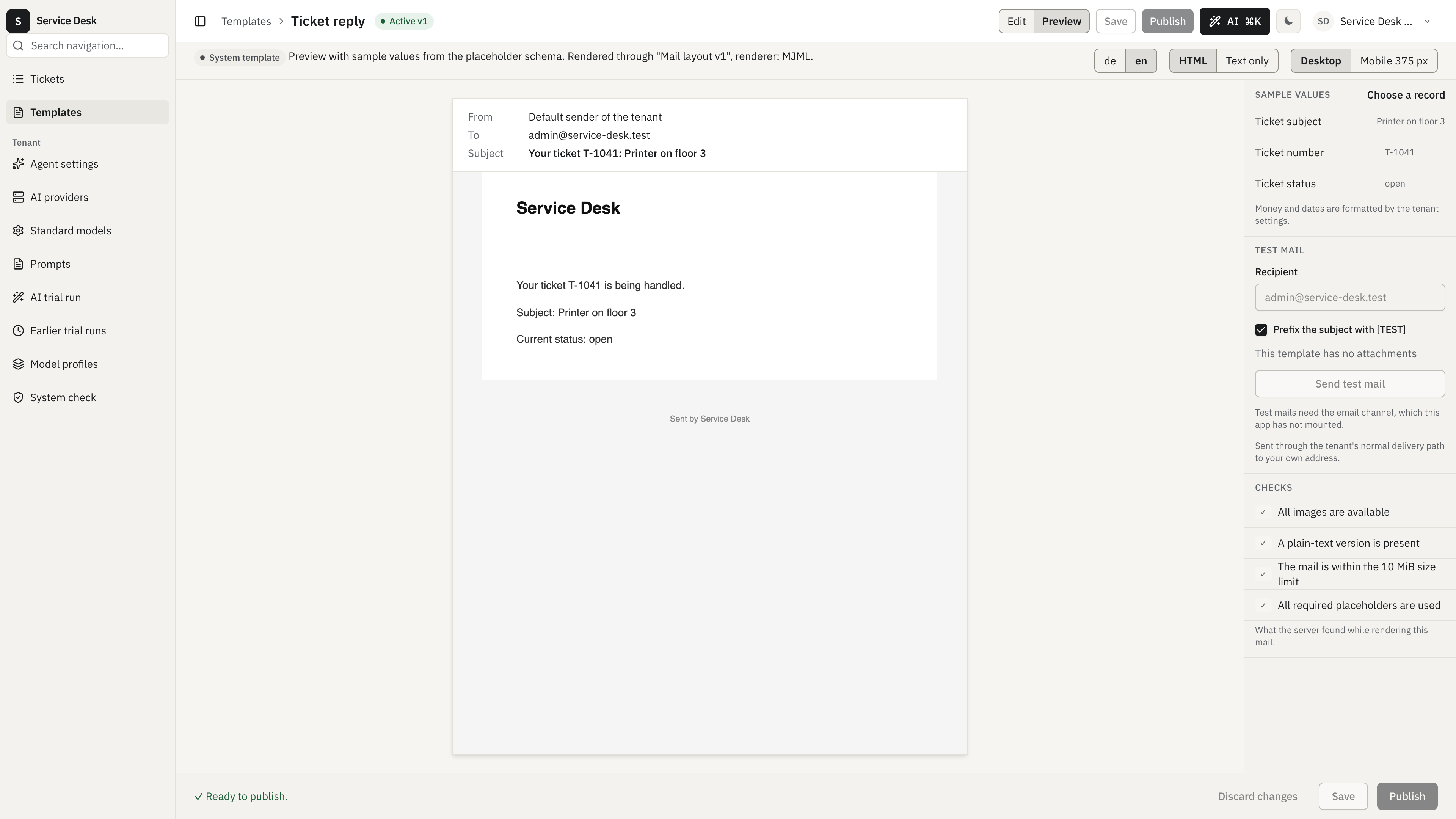
Section titled “Preview and test mail”Switch to Preview in the header to see the mail as the recipient will.
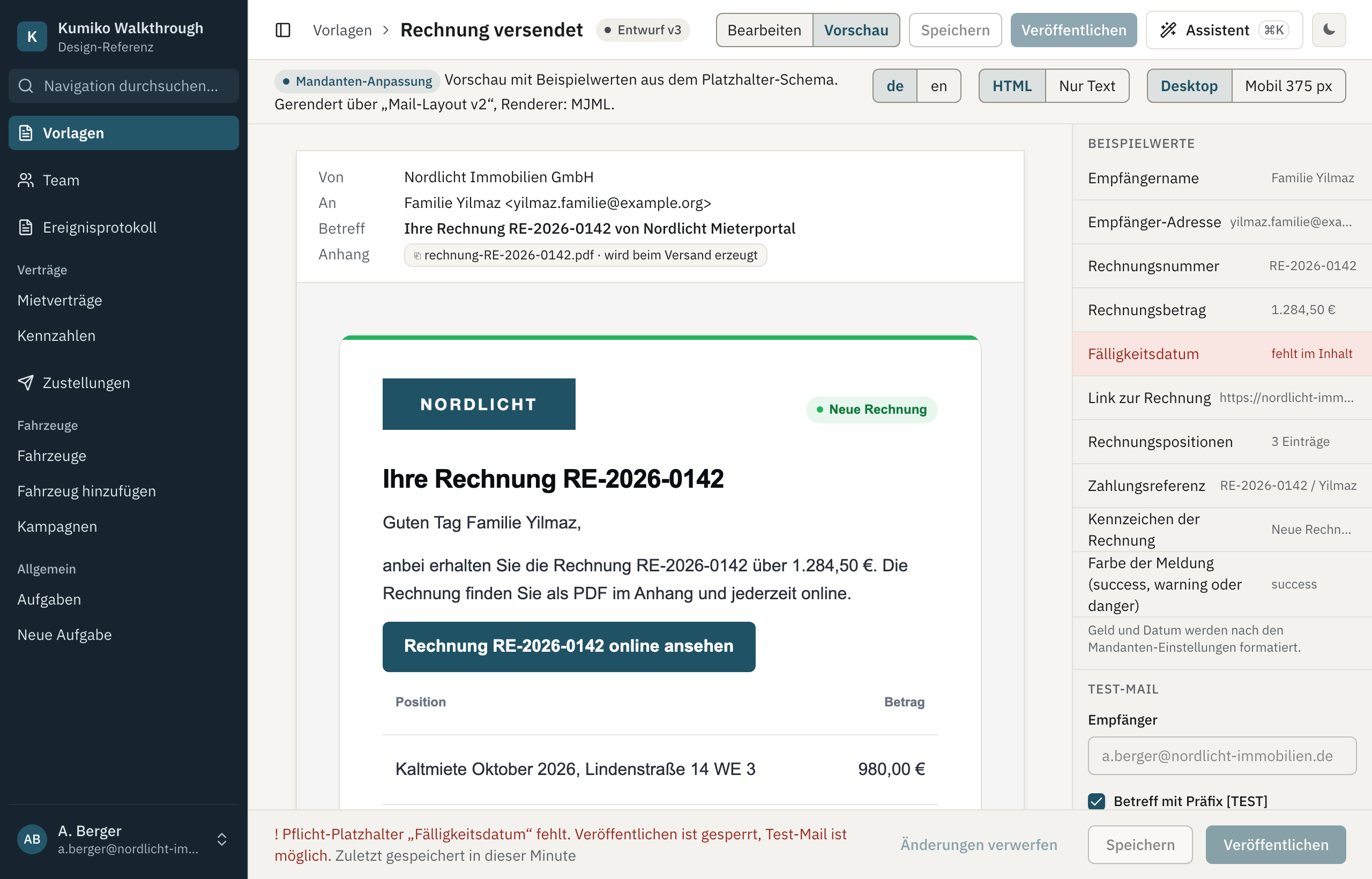
The preview fills the placeholders with their sample values and renders the mail through its layout. It shows the unsaved state, so you can check a change before you save it. Above the mail you can switch:
- the language,
- HTML or Text only, the plain text version mail clients fall back to,
- Desktop or Mobile 375 px.
Sample values on the right lists each placeholder with the value used in the preview. Amounts and dates follow the tenant’s settings, so an amount shows as 1.284,50 € for a German tenant. A required placeholder that the body does not use shows missing in content.
Test mail sends the current draft to your own address through the tenant’s
normal delivery path. You can prefix the subject with [TEST] and send the
attachments along. Test mails are rate limited.
Languages
Section titled “Languages”The language switch in the bar under the title shows one version per language. If a language has no version yet, the editor says so and offers Copy from German (or whichever language exists) or Start empty.
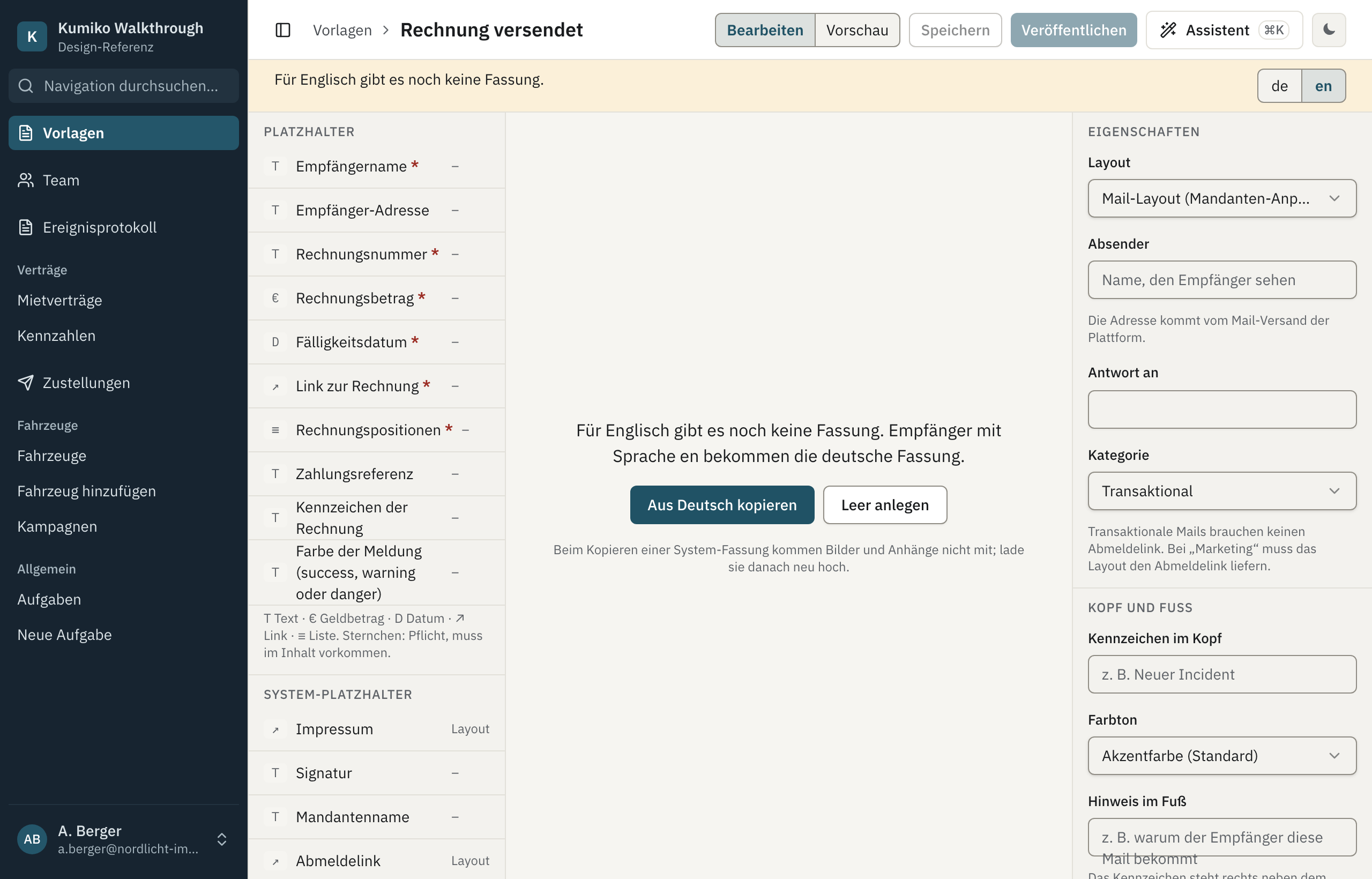
Until you publish an English version, recipients with English as their language get the fallback version.
Save, publish and drafts
Section titled “Save, publish and drafts”- Save stores a new version as a draft. Recipients still get the active version.
- Publish makes the current version the one recipients get. It stays disabled while a required placeholder is missing.
- Discard changes throws away what you have not saved. If you leave the page with unsaved changes, the editor asks whether to save them as a draft.
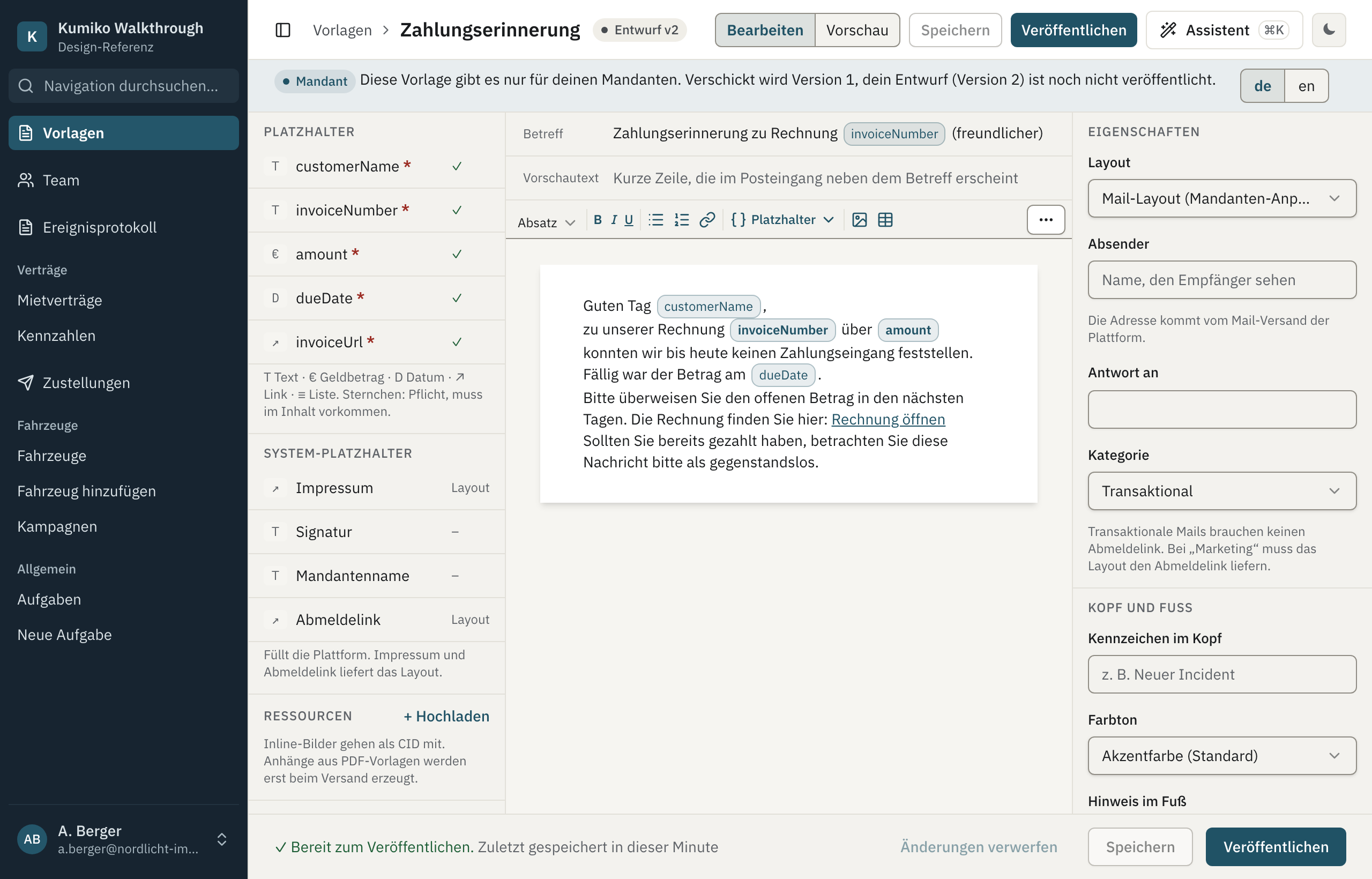
When you change a template that is already active, saving opens a new draft beside it. The bar says which version is sent and which one is waiting:
Let the assistant change a template
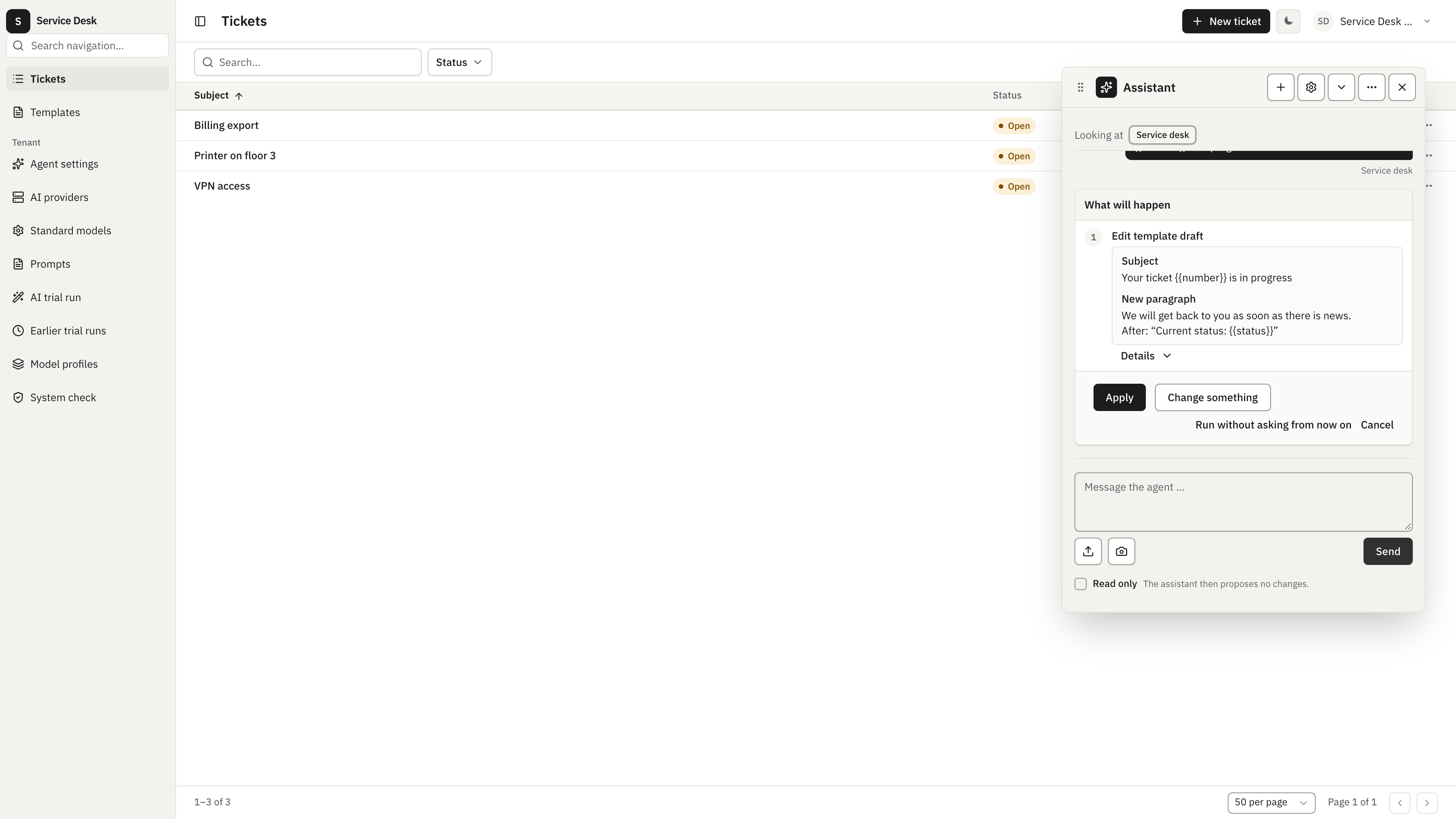
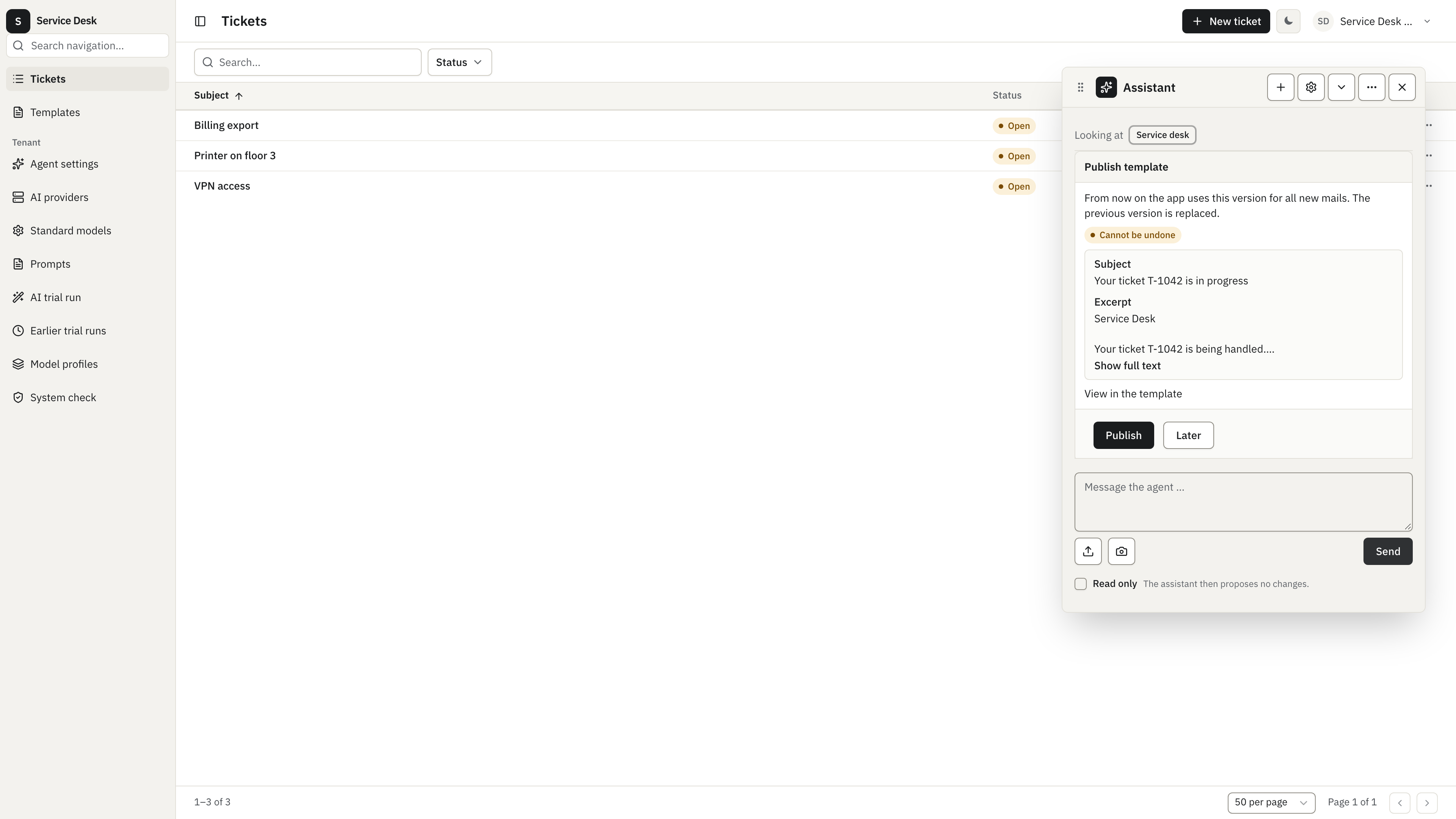
Section titled “Let the assistant change a template”With the AI assistant (Enterprise) you can ask for a template change in plain words. The assistant proposes the edit as a plan with the new subject and body. You apply it or ask for a change, and nothing is saved before that.
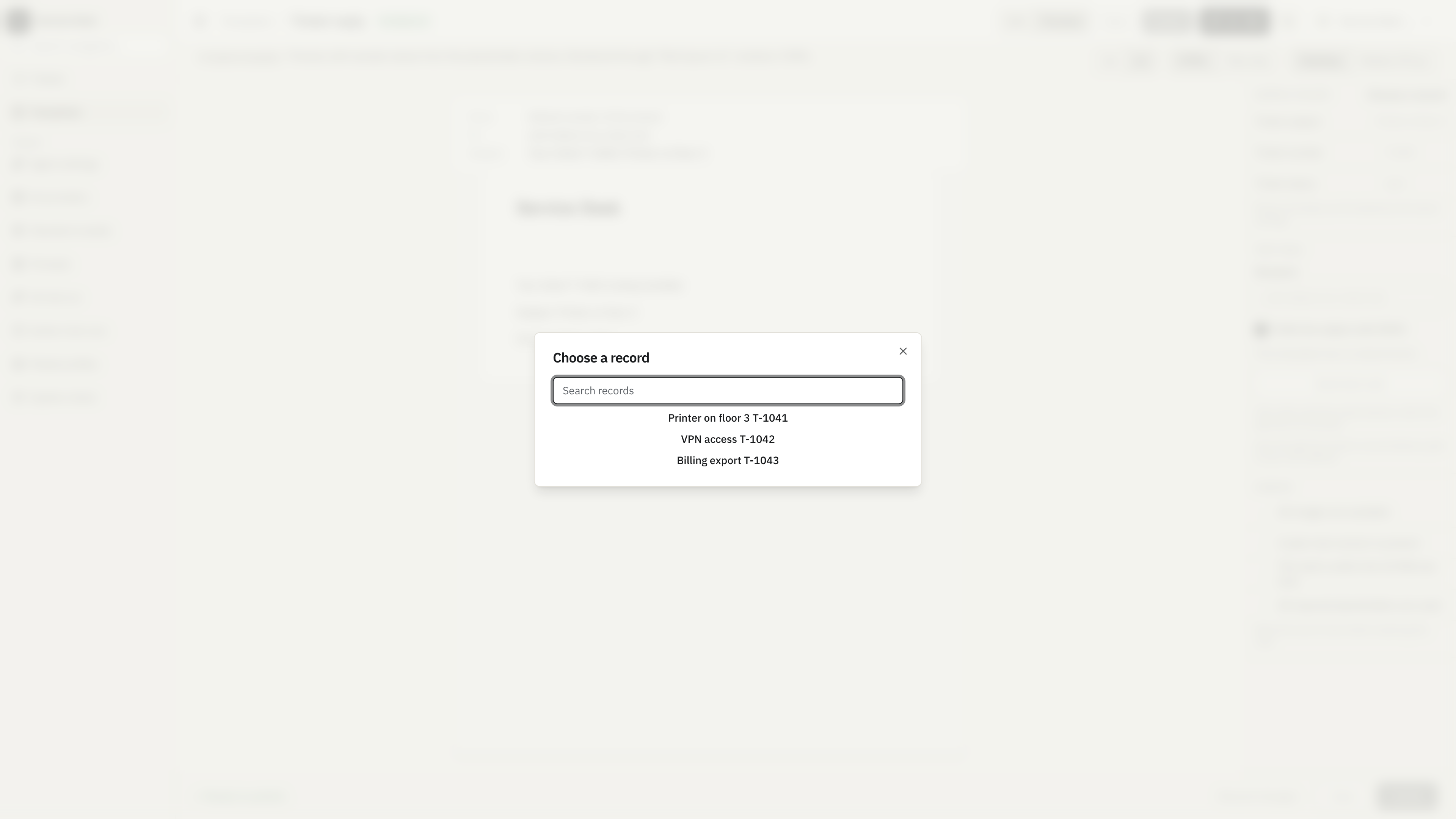
To check the result with real data, choose Choose a record in the sample values panel and pick a record. The preview then fills the placeholders from that record instead of the sample values.
Publishing always asks once more. The card marks the step as one that cannot be undone and shows a preview of the text. View in the template opens the editor if you want to look first.
Layouts and branding
Section titled “Layouts and branding”A layout is the frame around every mail or PDF: logo, header, signature and footer. Templates fill the content area in the middle. Open the layout from the overview (kind Layout) and switch between Mail layout and Letterhead (PDF) in the header.
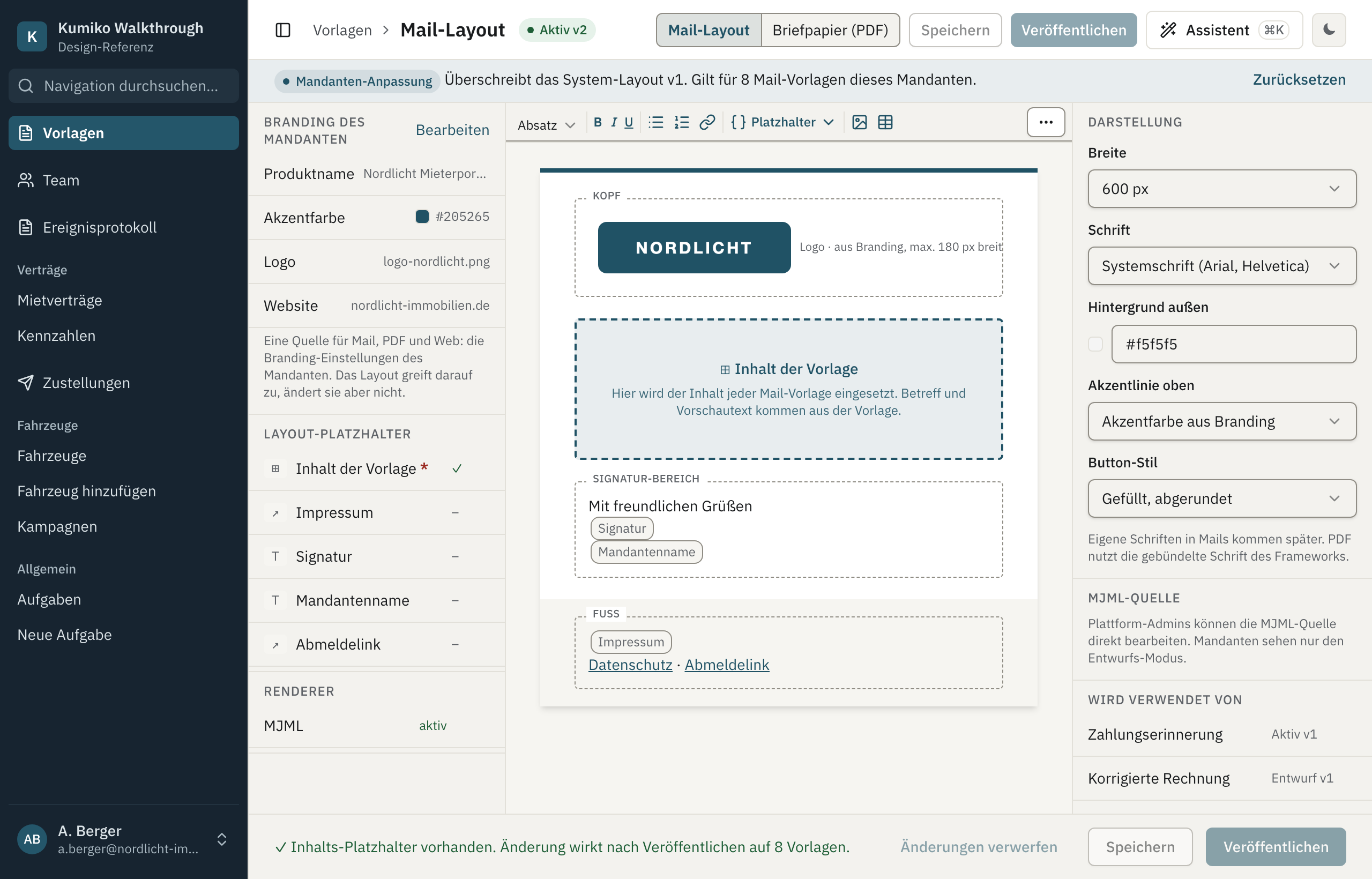
The left column shows the tenant branding the layout uses: product name, accent colour, logo and website. These values belong to the tenant’s branding settings, which also style the web app and the PDFs. The layout reads them but does not change them; Edit takes you to those settings.
The page in the middle has four regions:
- Header: the logo from branding, at most 180 px wide.
- Template content: where each template’s text goes. This placeholder is required, and the footer confirms it is present.
- Signature area, for example a greeting with the signature and tenant name placeholders.
- Footer: imprint, privacy link and unsubscribe link.
Under Appearance you set the mail width, the font, the outer background, the accent line at the top and the button style. Used by lists the templates that use this layout, and the footer tells you how many of them a publish will change.
Platform admins can also edit the system mail layout as MJML source. Tenants always edit the structured layout.
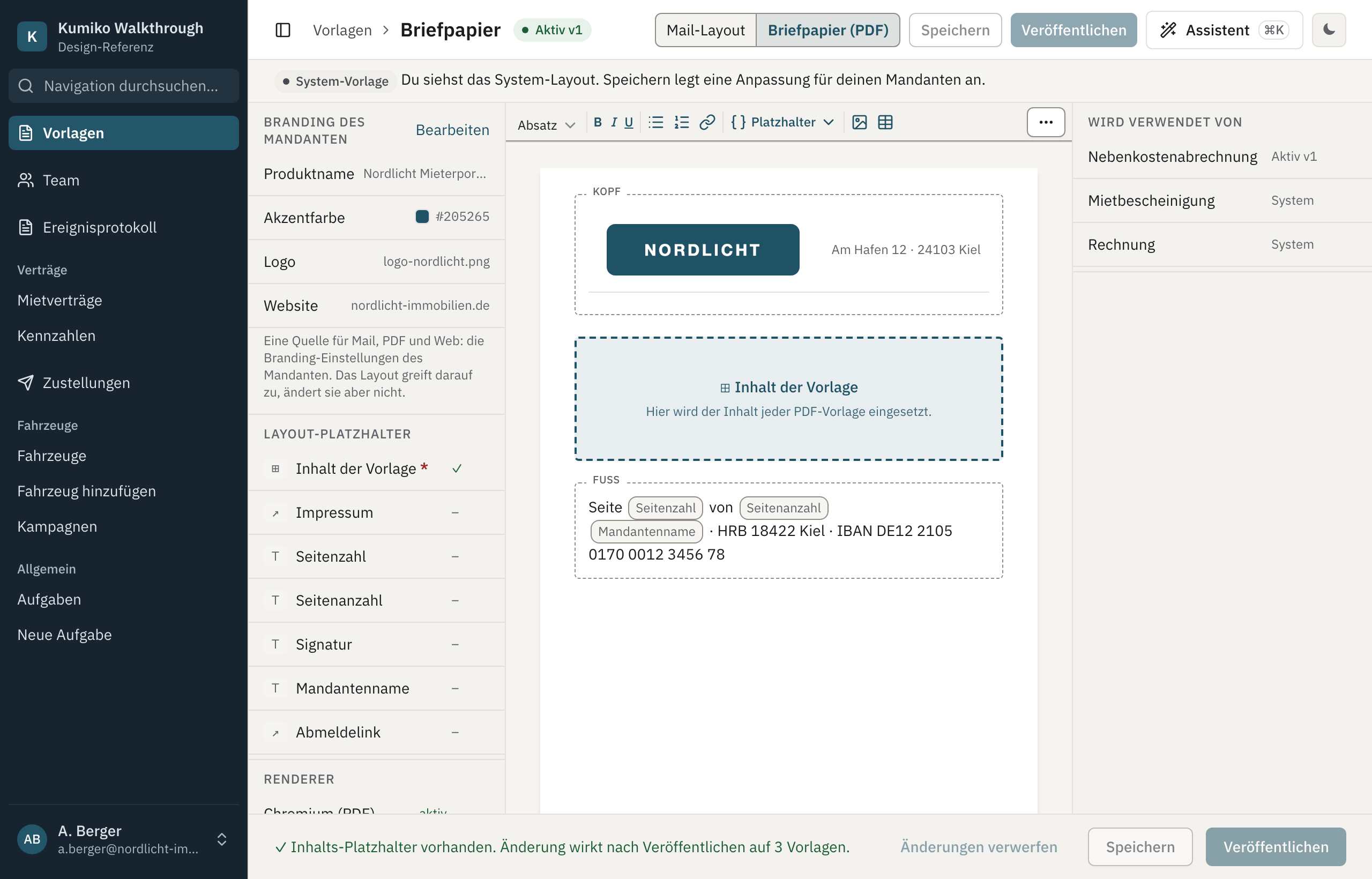
The letterhead works the same way for PDFs. Its footer usually carries the page number and page count placeholders and the company details:
PDF templates
Section titled “PDF templates”PDF templates use the same editor with document settings on the right instead of mail settings.
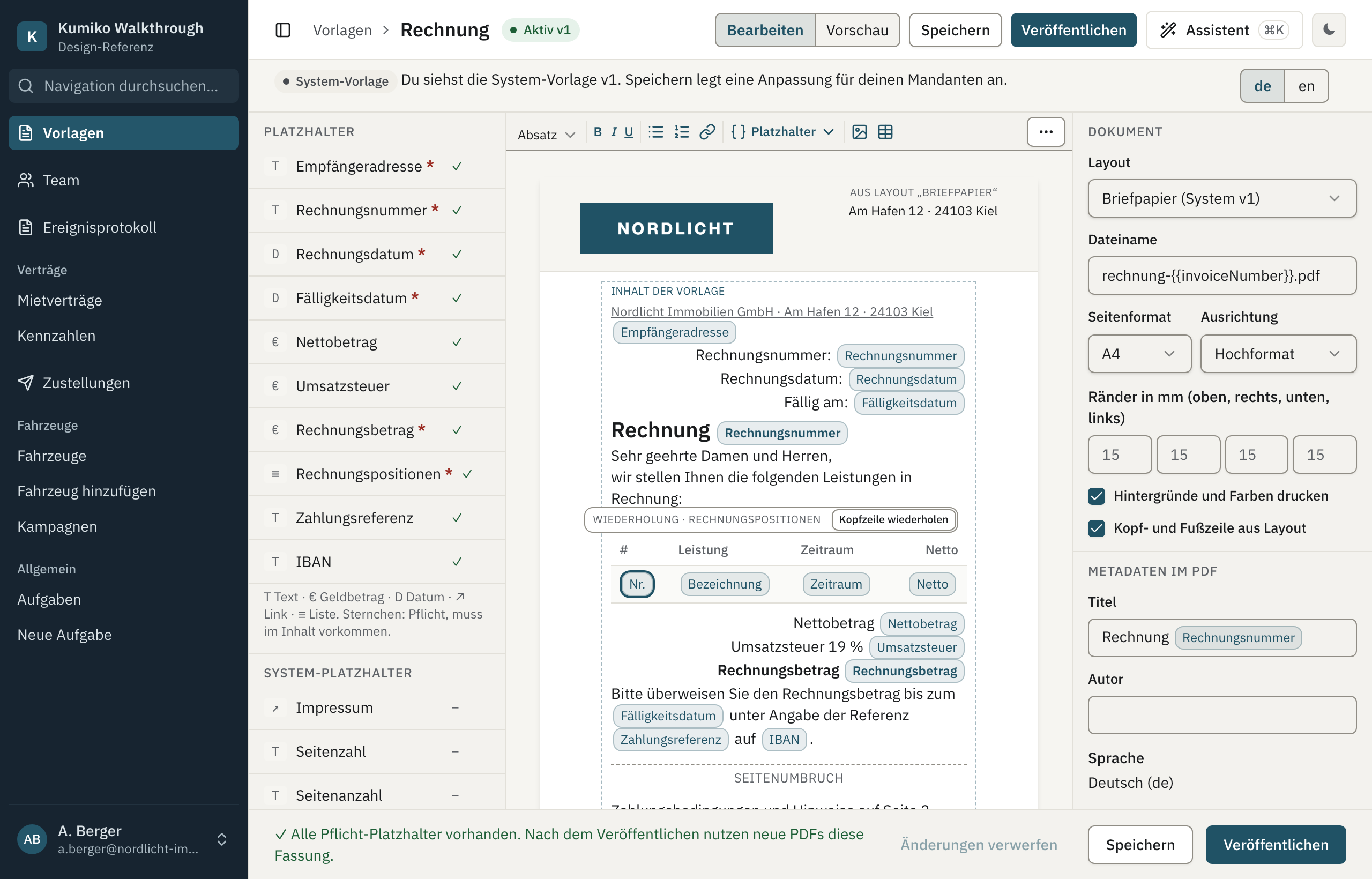
- Layout picks the letterhead. With Header and footer from layout checked, they repeat on every page.
- File name may contain placeholders, for example the invoice number.
- Page format, Orientation and the margins in millimetres set the page.
- Print backgrounds and colours keeps coloured areas in the PDF.
- PDF metadata sets title and author. The language follows the template language.
In the body, a table row bound to a list placeholder repeats once per entry. Click into the row to see the list it repeats over and to turn on Repeat header row, which repeats the table header on every page. A Page break block forces a new page. Images travel inside the PDF, so it needs no network access to show them.
Preview generates the real PDF through the print service. The page canvas in edit mode only shows page breaks roughly; Generate PDF is authoritative.
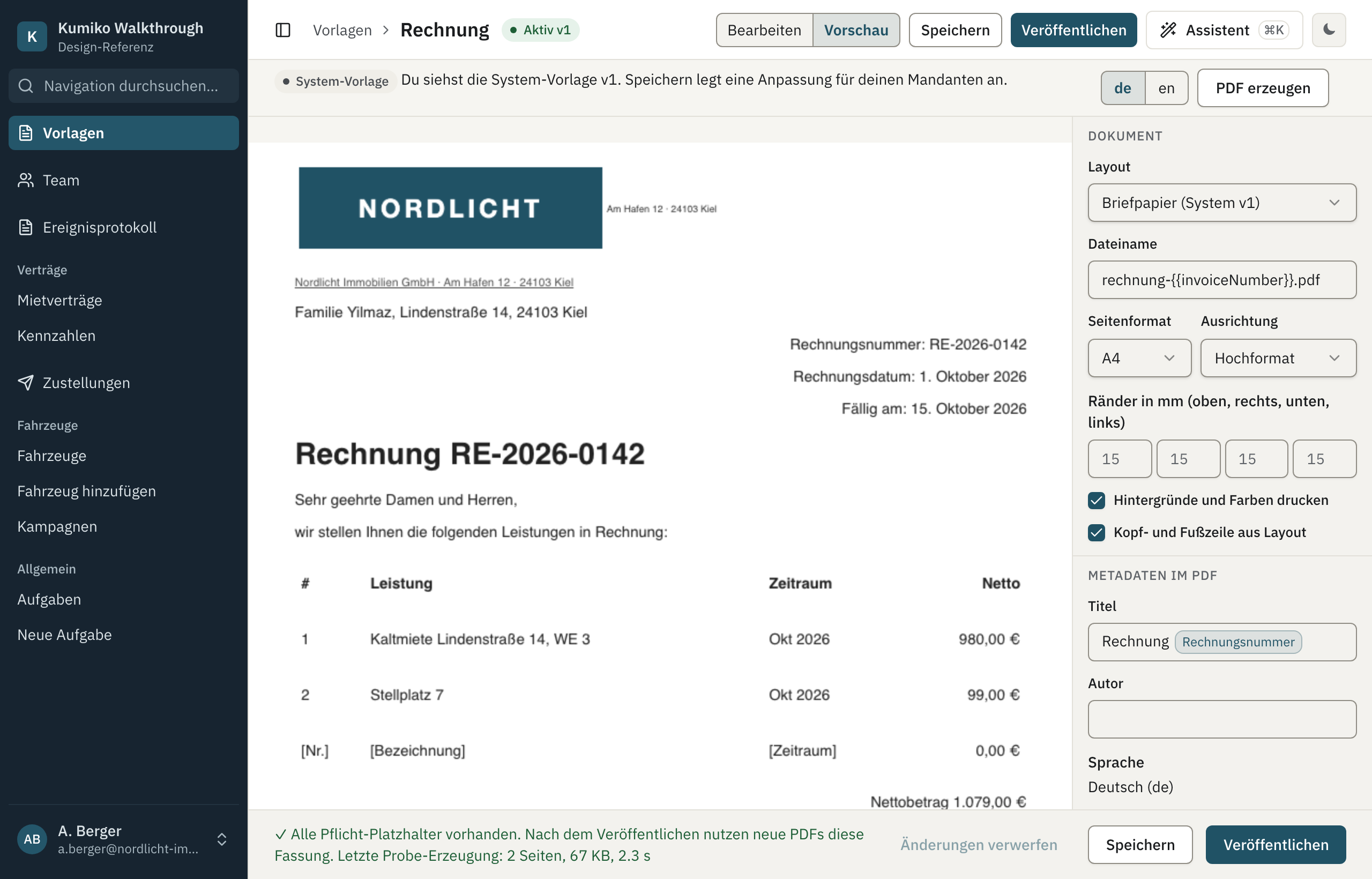
Every generated PDF carries the template id and version, so an invoice stays traceable after the template changes.
System templates and tenant customisations
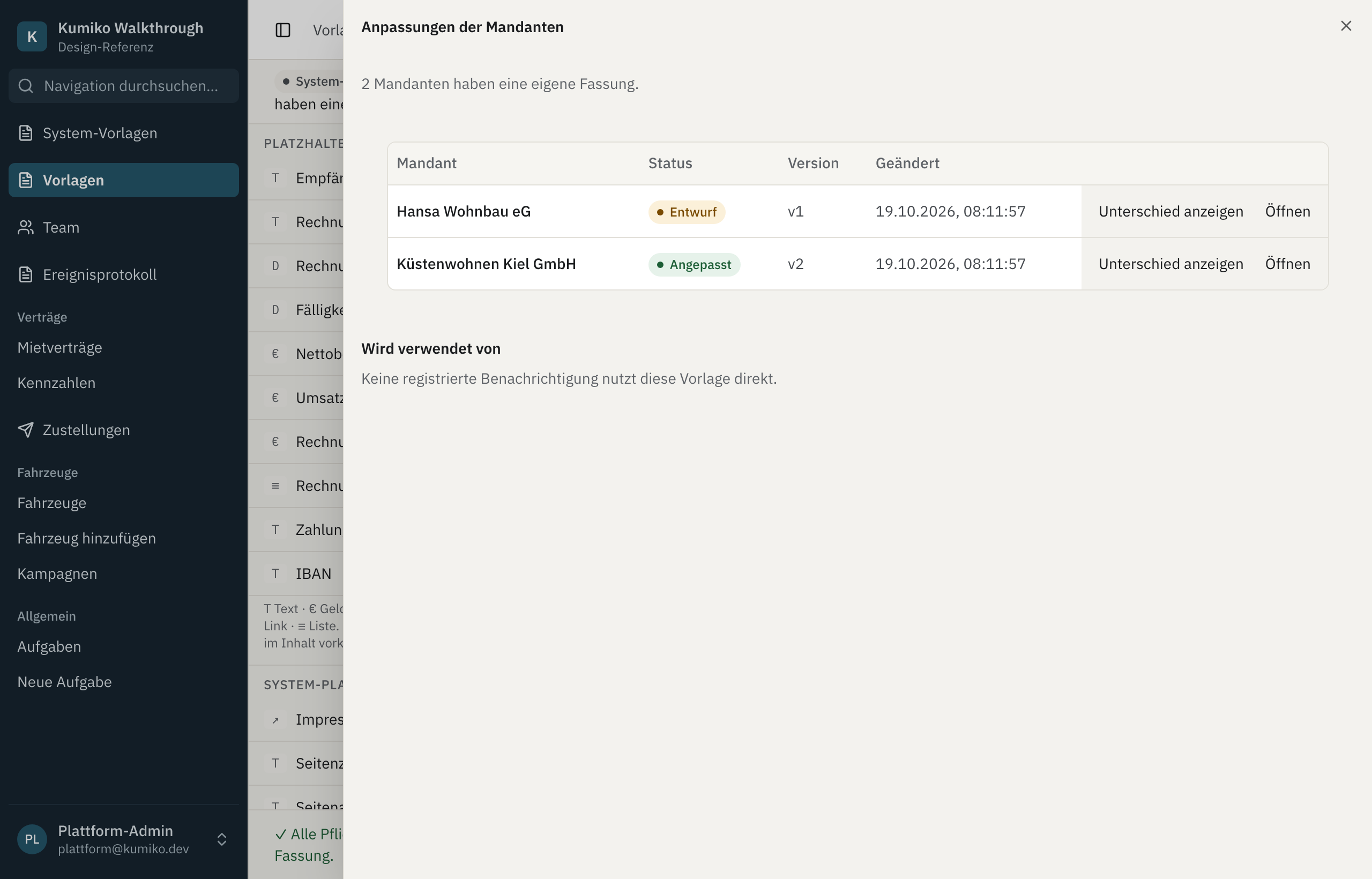
Section titled “System templates and tenant customisations”Platform admins see System templates next to Templates. The overview adds a Customised by column, for example 1 of 5 tenants. A change to a system template reaches every tenant without its own version. Tenants with a customisation keep theirs.
Inside a system template, Show tenant customisations lists the tenants with their own version, its status and when it changed. Show difference compares a tenant’s version with the system template, and Open shows it.
Some mails carry legal wording the platform owns. A feature can mark such a template as system only; tenants then neither see it nor override it.
Move a template with a bundle
Section titled “Move a template with a bundle”A bundle is one template with all its languages and resource files in a single JSON file. It moves a finished template from staging to production, or from one installation to another.
In a system PDF template, Export as bundle in the bar under the title
downloads it as <slug>.bundle.json. To bring it in, call the
template-resolver handlers import-bundle (into a tenant) or
import-bundle-system (as system template). There is no import button in the
designer.
Related
Section titled “Related”- document-designer and template-resolver reference
- Files and renderers for the mail and PDF rendering pipeline
- mail-foundation for tenants who send through their own mail server